Reading Sources into Literature Notes
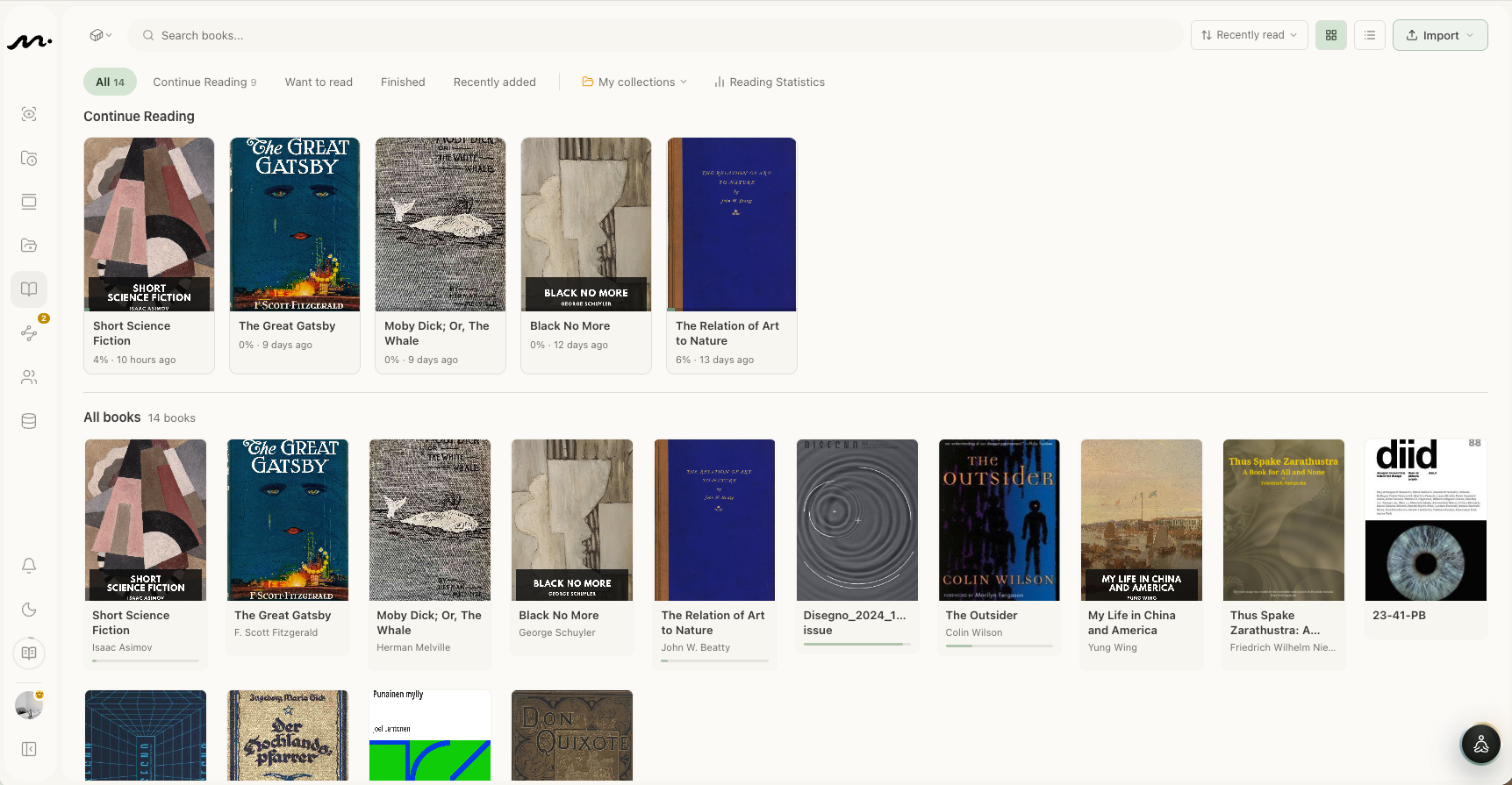
The reader is not only for finishing a book. It is for turning reading into literature notes you can find and cite later.
Library
Mozen supports EPUB and PDF, up to 200MB per file. Upload from the library or drag a file in. Filter by continue reading, want to read, or finished. Each title shows a cover, progress, and last opened time. Progress saves automatically so you return where you stopped.
Reading themes
Reading settings offer five themes: Auto (follow app light/dark), Light, Dark, Eye-care, and Green. Adjust font size, line height, and margins. The sidebar holds the full table of contents for chapter jumps.
Select a passage, leave your own words
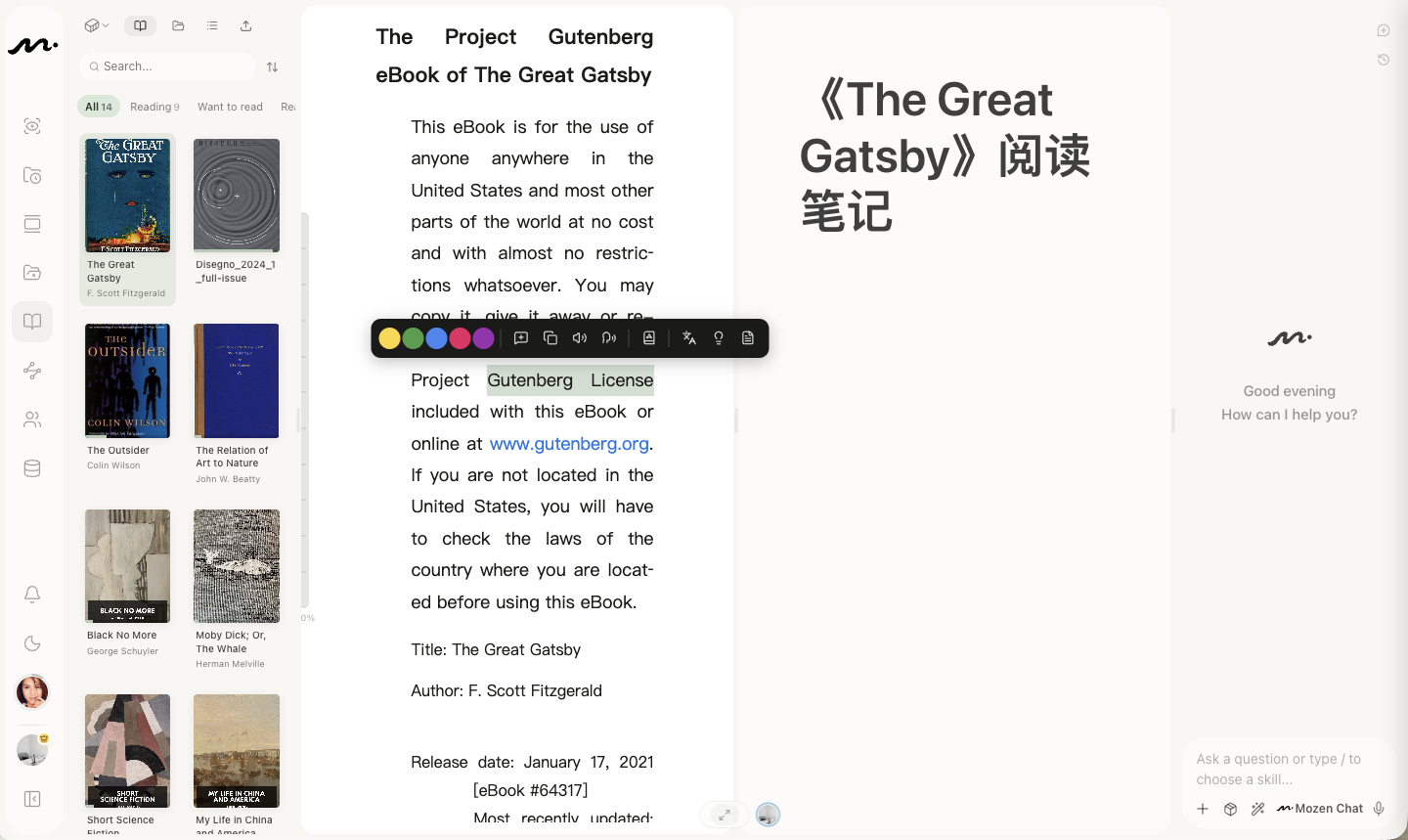
This is the action that matters. Select text (long-press on mobile) to open a toolbar:
| Control | What it does |
|---|---|
| Five color dots | Highlight only—yellow, green, blue, pink, purple help you find the spot later; they are not the note |
| Add annotation | Creates a literature note with title, chapter, and page carried automatically |
| Copy | Copies the source text (hidden on mobile; use the system selection menu) |
| Read selection | Speaks this passage once |
| Read onward | Continues speaking from here |
| Look up | Appears for a word or short phrase; lookups go to the vocabulary list |
| Translate · Explain · Summarize | Optional AI pass over the selection |
After Add annotation, a card opens with type Literature. The selected quote sits above; write your understanding below in your own words. The literature note then appears in Organize's third column until you decide whether to move it into the permanent collection—see Organize Research Notes.
Highlighting is not keeping. Seeing a passage is not understanding it, and highlighting is not saving knowledge. What remains must be your sentence plus attribution. A highlight is only a marker for your future self.
Listen while you read
TTS has four entries: the reader bottom bar, the same bar in fullscreen, the two speak buttons on the selection toolbar, and the media panel in the left sidebar—the last can keep playing in the background. Speed and voice live under Settings → AI, voice & tools.
Vocabulary list
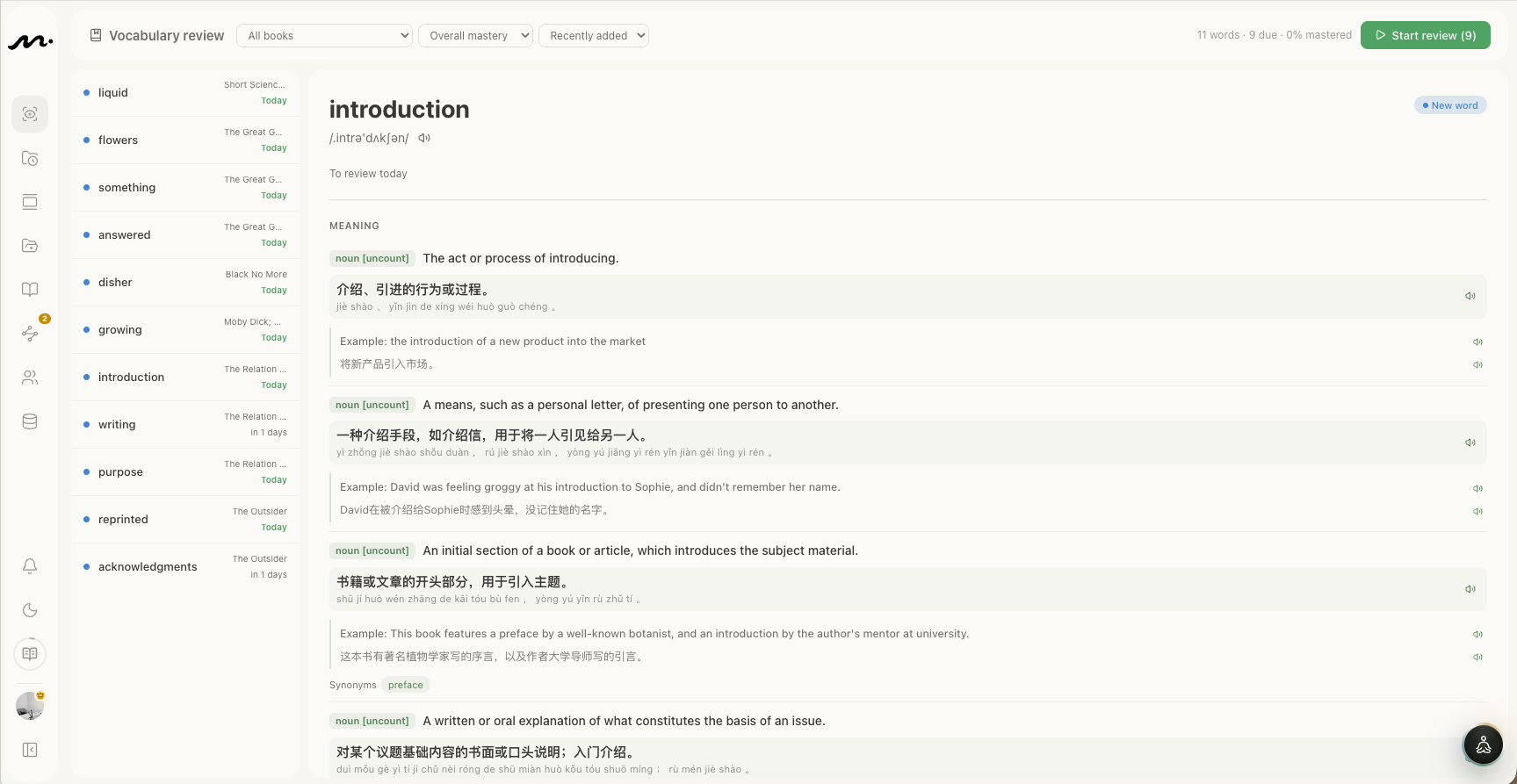
Words you look up collect in the vocabulary list: entries with pronunciation, sense, and the book they came from, plus spaced review. The home right rail shows up to three due items.
Vocabulary helps you absorb language. It does not replace literature notes or permanent notes.
Next step in the research path
Once a few literature notes exist, organize them into the knowledge tree, compare them on the whiteboard, and—if you are writing a review—open Academic Mode.